ISO Master which is claimed to be the best ISO editing tool is a graphical editor for ISO images. ISO Master is useful for extracting, deleting, or adding files and directories to or from an ISO image. ISO Master can read .ISO files (ISO9660, Joliet, RockRidge, and El Torito), most .NRG files, and some single-track .MDF files and can save and only save as .ISO.
The supported operations include, add/delete files and directories under the ISO image, Modify/delete the Boot records. extract files from the ISO etc.
Install ISO Master
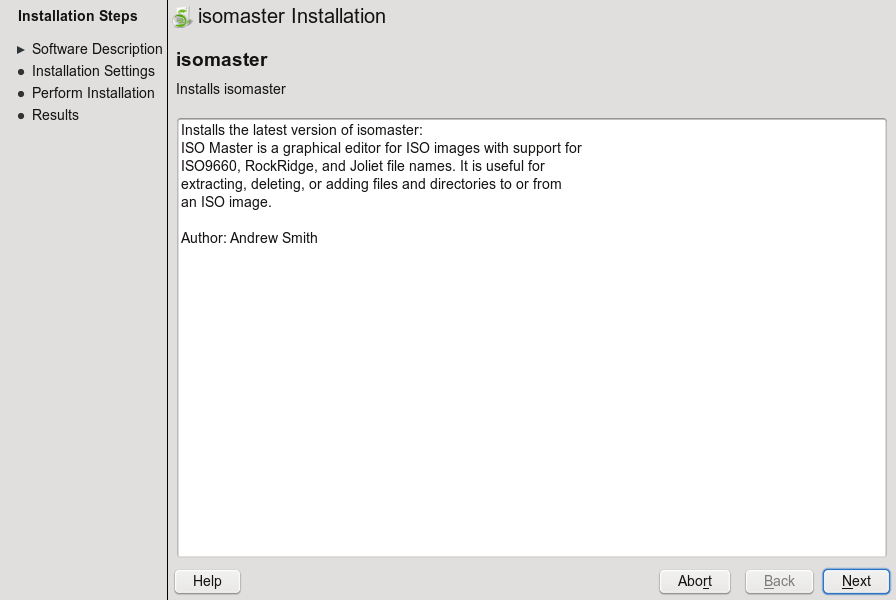
Packman as always hosts a 1-click install Yast Metapackage for ISO Master. This installer is supported on openSUSE 11.0, openSUSE 10.3, openSUSE 10.2, and SUSE 10.1 & 10.0
To install ISO Master, simply click  to download the 1-click Yast Metapackager and automatically open with YaST2 package Manager


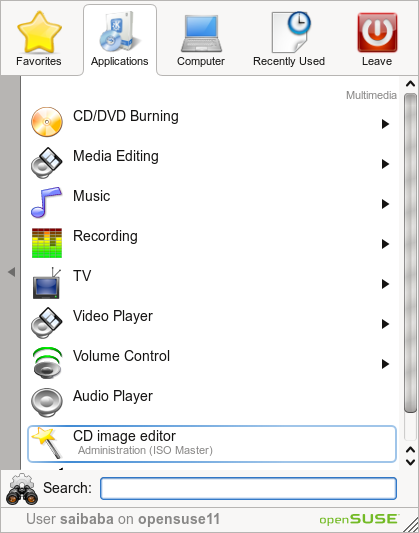
Once installed, the ISO Master is loaded under Applications – Multimedia as “CD Image Editor”
Click on it to start ISO Master. The GUI is simple and no complex menus, in the top window, select the ISO file you would want to edit and double-click it. This will open the ISO image in the bottom window from where you can add, delete files, extract files from the ISO or add a directory to the ISO. You can also modify or delete the Boot Record from the ISO.


A great tool with a simple and easy to use interface to edit ISO Images.
To visit the author’s website, click here
Hi! I was surfing and found your blog post… nice! I love your blog. 🙂 Cheers! Sandra. R.
truly fantastic. I wanted pictures to add in my school project effectively images could possibly have posted are outstanding. A lot of for them buddy! I guess teacher will definitely enjoy my project mainly because these images and of course the details I provided.