Kernel-based Virtual Machine (KVM) is a Linux kernel virtualization infrastructure. KVM is a full virtualization solution for Linux on x86 hardware containing virtualization extensions Intel VT (vmx) or AMD-V (svm). It consists of a loadable kernel module, kvm.ko, that provides the core virtualization infrastructure and a processor specific module, kvm-intel.ko or kvm-amd.ko. KVM also requires a modified QEMU although work is underway to get the required changes upstream.
KVM is a free opensource virtualization software and is included in Linux Kernel version 2.6.20 and above. Using KVM, one can run multiple virtual machines running unmodified Linux or Windows images. Each virtual machine has private virtualized hardware: a network card, disk, graphics adapter, etc.
Install & use KVM in openSUSE
The following procedure will take you through install and setup of KVM and creating/running a Virtual Machine on openSUSE.
Hardware Requirements
KVM depends on the X86 virtualization extensions on your Intel or AMD processor. To check the processor support for KVM,
On an Intel based hardware,
opensuse11:~ # grep vmx /proc/cpuinfo
flags : fpu vme de pse tsc msr pae mce cx8 apic sep mtrr pge mca cmov pat pse36 clflush dts acpi mmx fxsr sse sse2 ss ht tm pbe syscall nx lm constant_tsc arch_perfmon pebs bts rep_good pni monitor ds_cpl vmx est tm2 ssse3 cx16 xtpr lahf_lm ida
flags : fpu vme de pse tsc msr pae mce cx8 apic sep mtrr pge mca cmov pat pse36 clflush dts acpi mmx fxsr sse sse2 ss ht tm pbe syscall nx lm constant_tsc arch_perfmon pebs bts rep_good pni monitor ds_cpl vmx est tm2 ssse3 cx16 xtpr lahf_lm ida
On an AMD based hardware,
opensuse11:~ # grep svm /proc/cpuinfo
Install KVM
Add the following repositories for KVM and QEMU on your openSUSE 11.0
opensuse11:~ # zypper ar http://download.opensuse.org/repositories/Virtualization:/KVM/openSUSE_11.0/ “KVM Virtualization”
opensuse11:~ # zypper ar http://download.opensuse.org/repositories/Virtualization:/Qemu/openSUSE_11.0/ “QEMU Virtualization”
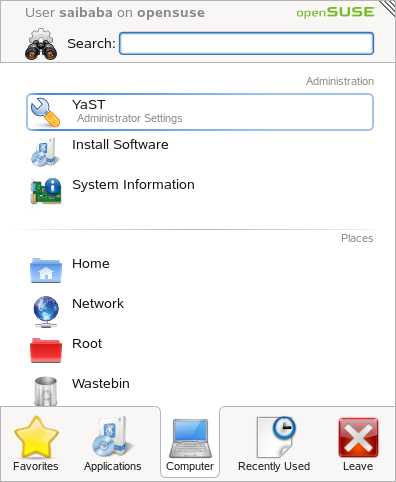
Now, we are ready to install KVM. Click “Computer – Install Software“, enter the password for root when prompted (if you are not a root user).
In the filter select search, and search for “kvm” and click search. Select “kvm” and “kvm-kmp-default” and click Accept. Here it is important to ensure that the kernel version of your openSUSE 11.0 matches that of the “kvm-kmp-default” package version to get it work properly.

To find the installed version of Linux Kernel on your openSUSE:
saibaba@opensuse11:~> uname -r
2.6.25.16-0.1-default
Now, your “kvm-kmp-default” version (as on my install) should be 75_2.6.25.16_0.1-7.1 where “75” denotes the KVM version and the rest shows the kernel version.

Similary, from YaST search for qemu and select “kqemu-kmp-default” and “qemu” and click Accept. “QEMU” is a CPU emulator and “KQEMU” is the QEMU Accelerator Module increases the speed of QEMU when a PC is emulated on a PC.

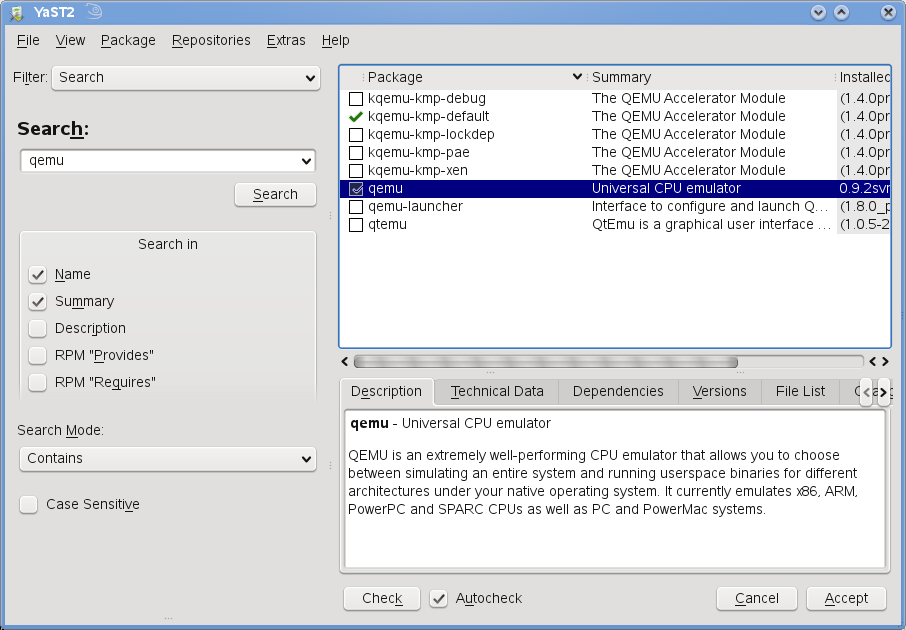
This should complete the installation.
Insert KVM Modules
Insert the kvm modules as follows (as root)
For Intel processors
opensuse11:~ # modprobe kvm
opensuse11:~ # modprobe kvm-intel
For AMD processors
opensuse11:~ # modprobe kvm
opensuse11:~ # modprobe kvm-amd
To confirm the modules OK,
opensuse11:~ # lsmod | grep kvm
kvm_intel 67824 0
kvm 182936 1 kvm_intel
However, this setting lost on a reboot.
To insert this module at boot time, Click Computer – YaST – System – “/etc/sysconfig editor”. This launches the sysconfig editor.
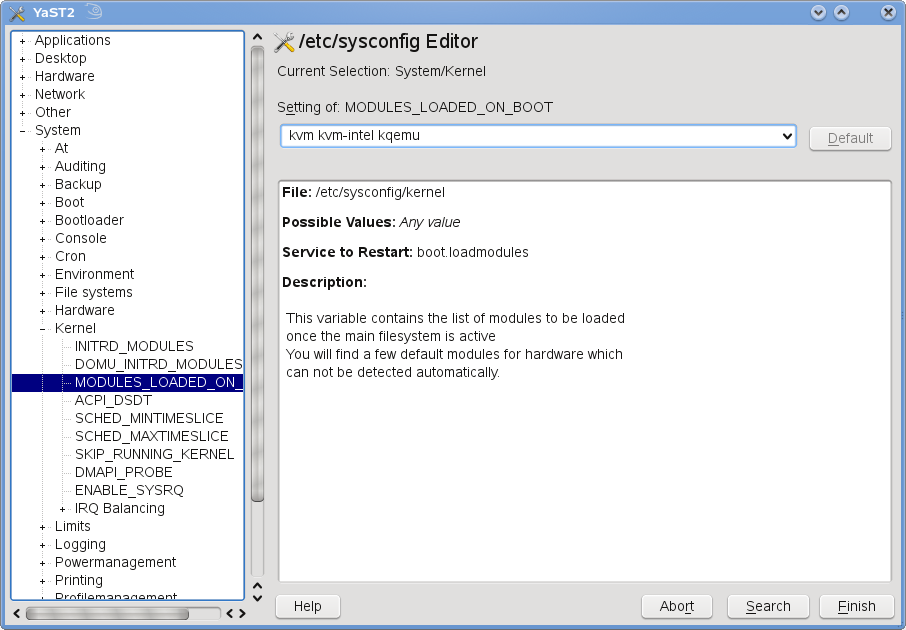
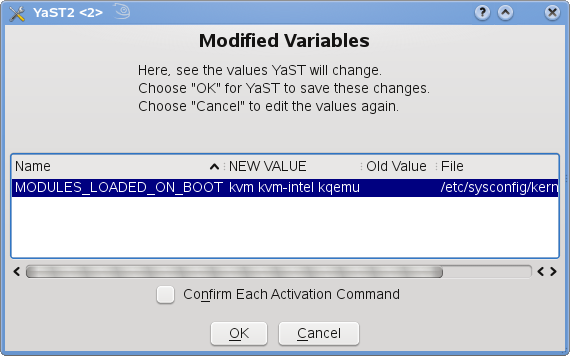
Click “+” next to “system” and then “+” next to Kernel. Click “MODULES_LOADED_ON_BOOT“, in the right-pane, enter “kvm kvm-intel kqemu” without quotes (“kvm kvm-amd kqemu” for AMD) in the setting box and click finish. Click OK on the confirmation window.
Now, we are all set to configure and run a guest OS on your openSUSE.
Create Guest OS Disk image
Create a disk image file on which the guest OS will be installed.
opensuse11:~ # qemu-img create -f qcow /vms/deb_disk.img 10G
In the above “10G” indicates the Virtual Disk Size to be 10GB in size. The /vms/vdisk.img is the disk image name and “qcow” is the file type.
Install Guest OS
opensuse11:~ # qemu-system-x86_64 -hda /vms/deb_disk.img -cdrom /media.iso -boot d -m 512
where “-m 512” sets the memory allocation to 512M
“-cdrom /media.iso” is the CD image used to install the guest os
and defaults to the “user” network type which is a simple way for your virtual machine to access to the host, to the internet or to resources available on your local network.
This should start the QEMU console to start the installation. Install the Guest OS as you normally would. Once the installation is complete. Close the console window.
Start guest OS
Start the Guest OS as follows:
opensuse11:~ # qemu-system-x86_64 -hda /vms/deb_disk.img

This starts the guest OS installed on /vms/deb_disk.img with the default user network settings which is a simple way for your virtual machine to access to the host, to the internet or to resources available on your local network. The above command is equivalent to
opensuse11:~ # qemu-system-x86_64 -hda /vms/deb_disk.img -net nic -net user
There you go, you have your Guest OS up and running. Multiple Guest OSs can be installed as above and run simultaneously based on the system performance level.
Great article, thanks!
Uh…
zypper am http://download.opensuse.org/repositories/Virtualization:/KVM/openSUSE_11.0/ “KVM Virtualization”
Unknown command ‘am’
Fixed the command now. Should have been “ar”
zypper ar http://download.opensuse.org/repositories/Virtualization:/Qemu/openSUSE_11.0/ “QEMU Virtualization”
Seems not to work until you remove the space in “QEMU Virtualisation”…
The alias it seems has to be one word only.
This is true in Yast and at the command prompt.
NO .. there is major disinfo .. steps in this article does not lead to run KVM based guest, but pure software based quest based on qemu..
to run machine under KVM, proceed as follows ::
## add with alias KVM needed repo and install packages
zypper ar http://download.opensuse.org/repositories/Virtualization:/KVM/openSUSE_11.0 KVM
zypper refresh
zypper in -r KVM kvm
zypper in qemu
## load and check modules .. in my case amd
modprobe kmp
modprobe kmp-pae
lsmod | grep kmp
## add suggested user into kvm group to can use kvm as non-root
usermod -A kvm
## create disk and run guest ..
qemu-img create -f raw /path/to/disk.img 2G
qemu-kvm -hda /path/to/disk.img -cdrom /path/to/bootable.iso -boot d -m 128 -cpu athlon -localtime
<< package qemu is needed only for qemu-img binary .. it is not necessary to add qemu repo as well as installing qemu-modules
please fix it in article ..
regards by nettezzaumana
*** sorry ..
modprobe kmp-amd ## should be there ^^ .. not `modprobe kmp-pae`
## so i will again write a steps ::
zypper ar http://download.opensuse.org/repositories/Virtualization:/KVM/openSUSE_11.0 KVM
zypper refresh
zypper in -r KVM kvm
zypper in qemu
modprobe kmp
modprobe kmp-amd ## owners of intel need to load kmp-intel instead
lsmod | grep kmp ## check if loaded
usermod -A kvm username ## need to reload user if active to make changes affect
qemu-img create -f raw /path/to/disk.img 2G
qemu-kvm -hda /path/to/disk.img -cdrom /path/to/bootable.iso -boot d -m 128 -cpu athlon -localtime
## you can order these modules be loaded during boot by editing /etc/sysconfig/kernel in variable MODULES_LOADED_ON_BOOT=foo ..
## JFYI :: qemu-system-x86_64 binary used in article above is provided by package:
# rpm -qif `which qemu-system-x86_64` | sed ‘/^Name/!d’
Name : qemu
## and have nothing to do with KVM based virtualization ..
regards
Have you tried kvm virtualization on OpenSuSE 11.2? TU
I’ve just tried:
1) installed kvm and qemu through Yast (they are already available in the distribution, i.e. no zypper commands required).
I was not able to find “kqemu-kmp-default”, hence I didn’t install kqemu.
3) checked for the modules with “lsmod | grep kvm”
3) with Yast, added “kvm kvm-amd kqemu” in /etc/sysconfig (although kqemu is missing !!)
4) created the image
mkdir /vms
cd /vms
qemu-img create -f qcow xp_disk.img 10G
5) installed XP
qemu-system-x86_64 -hda /home/vms/xp_disk.img -cdrom /home/iso/WinXP_Pro_SP2_IT.iso -boot d -m 512
6) started XP, with either:
qemu-system-x86_64 -hda /home/vms/xp_disk.img
or
qemu-kvm -hda /home/vms/kubu_disk.img
Both commands work. With the latter, XP seems to be faster, BUT not as faster as expected !!
I guess that with kqemu it should be faster !
Could someone tell me where can I retrieve it for OpenSUSE 11.2 ?
Thanks