Hostname is the name of the pc or laptop or even your system with which it is identified on a network. When you did the installation, you would have not specified the hostname or is assigned by a DHCP server but you would want to change it then here is the procedure.
In openSUSE, if you would like to do this from the Desktop.
1. Click Computer – YAST

2. Enter the root user password, if you are not an administrator on the system.
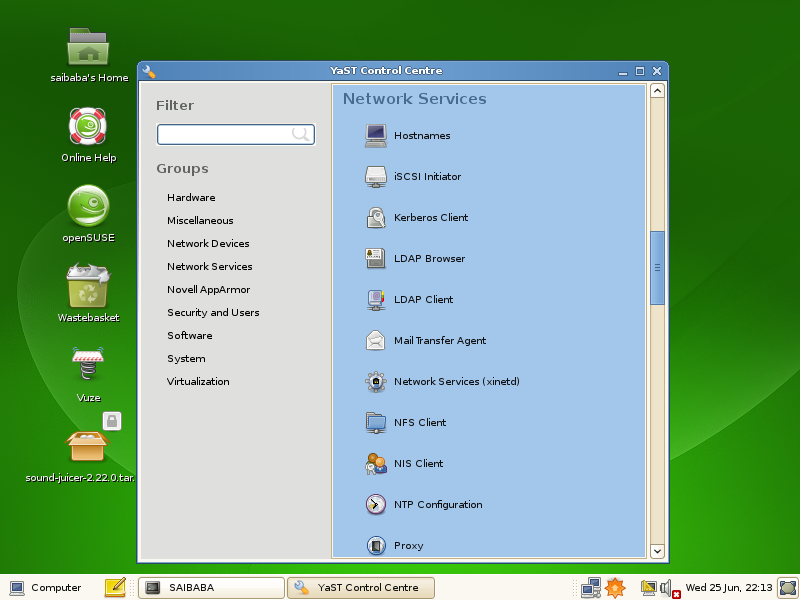
3. Click Network Services in the left pane and click Hostnames.

4. Select the IP Address Hostname line as in this screenshot and click Edit. Change the Hostname as required.
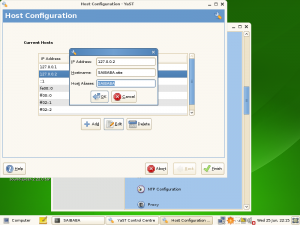
5. If you need to add a new Hostname, then click Add (instead of EDIT) and enter the IP Address and new hostname.
6. Click Finish.
This should change the hostname and resconfigure the Network Card. The effective change is that it change the hostname entry in the /etc/hosts file.
To manually edit the hostname without using the YAST control center then edit the /etc/hosts with your favorite Text editor
linux-4518:~ # vi /etc/hosts
And update the following file with the new hostname
linux-4518:~ # echo "newname" > /etc/HOSTNAME
and look for the line with the hostname that you want to change and change as required. If you want to add a new hostname the in a new line enter the IP Address and the hostname. Save the file.
Also, in Network Manager, there is a setting which overwrites the hostname it has onto the /etc/hosts file. Hence, it is important to either disable the option or to enter the right hostname in here as well.
To change,
1. Click Start Menu – Computer – YaST – Network Devices – Network Settings
2. Click Hostname/DNS tab and untick “Write hostname to /etc/hosts” or alternatively, enter the appropriate hostname in the box provided as shown in the screenshot below:

This should help. The next time reboot the your system, the hostname should have changed.
on opensuse 11.0 this will not help
the hostname stays the old one, no matter if you edit it to the new one
where the heck did you put that info?
I think you use DHCP, if so the last suggestion about the hostname change from the Network Manager should help! This is the option that resets the hostname no matter what you enter in the host file
ok, thanks, that did the trick
can you also tell me, how i see which config file that is (in case i dont want to fire up yast 😉
You should edit /etc/HOSTNAME istead of /etc/hosts
Lucky is right
2. Click Hostname/DNS tab and untick “Write hostname to /etc/hosts” or alternatively, enter the appropriate hostname in the box provided as shown in the screenshot below:
1. this section is greyed out for me. How do I disable this (untick)?
2. tried step 1 hostnames IPa ddess.. there are so many (127.0.0.1, 127.0.0.2, etc) which one is my guest OS host?
thanks
Nice gimp tips. thanks..
Nice tip. Thanks ..