When I wrote about GNOME-Do here, one of our readers “James D” suggested Katapult application launcher for KDE. Inspired by QuickSilver for Mac OS X, Katapult is an application launcher for KDE designed to allow faster access to applications, bookmarks, and other items. It is plugin-based, so it can launch anything that is has a plugin for. Its display is driven by plugins as well, so its appearance is completely customizable. It was inspired by Quicksilver for OS X.
Install Katapult
Katapult can be installed using one of the following 1-click installs based on your openSUSE version.
openSUSE 11.0 ( Katapult-0.3.2.1-123.1)

openSUSE 10.3 ( Katapult-0.3.2.1-36)
openSUSE 10.2 (katapult-0.3.2.1-68.1)
NOTE: Click here to enable 1-click install in openSUSE 10.2
This should download the YaST MetaPackage file (YMP) and launch the YaST Package manager for installation. Click next on the window showing the selected repositories and next again on the package selection window and finally click Next on the installation proposal window. This should add the required repositories (click import when prompted to import the GPG Keys) and install “Katapult” and required dependencies. Click Finish when the installation is completed succesfully.



This installs Katapult under “Applications – Utilities – Desktop” as “Application launcher“. Click Application launcher to start Katapult for the first time. Katapult sits in the system tray. Click on the icon or press <ALT>+<SPACE> and start typing. When it disappears in the background, use <ALT>+<SPACE> again to bring it to front.

To configure Katapult, press <ALT>+<SPACE> and then <CTRL>+<C> and select “Configure Katapult” or simply right-click on Katapult system tray icon and select “Configure Katapult”
Lets get Katapult in action,
Do a Google search
To search for your keyword in google, type “google keyword”.

Amarok
Start Amarok by typing “am”

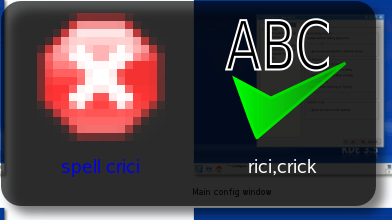
Spell check
To perform a spell check type “spell <word”>
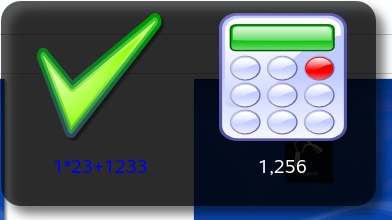
Calculator
To perform calculations, start typing with numbers
Katapult isn’t as powerful as GNOME Do but certainly a very good application launcher for KDE users. Click here to visit the project homepage.